Free AI Image Generator
Create images from text in seconds. Write a prompt, choose a style and aspect ratio, then generate, and send any result to the upscaler, enhancer, or background remover to finish it.
One generator, every style
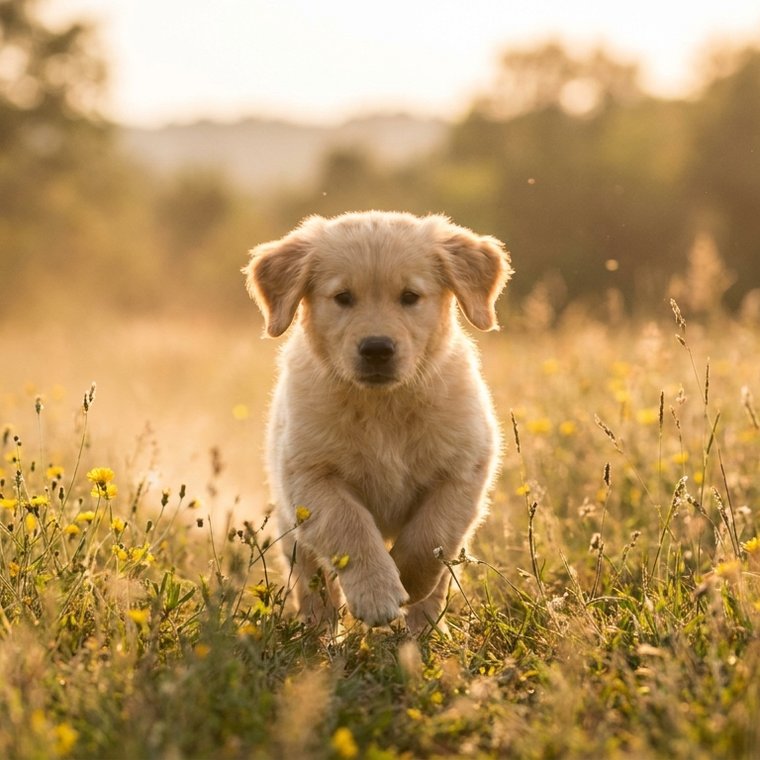
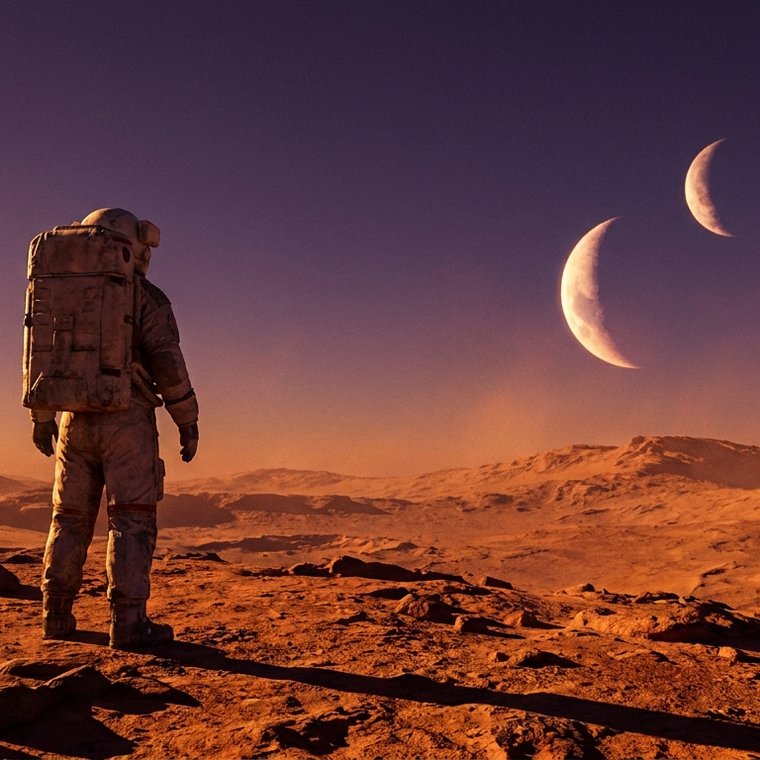
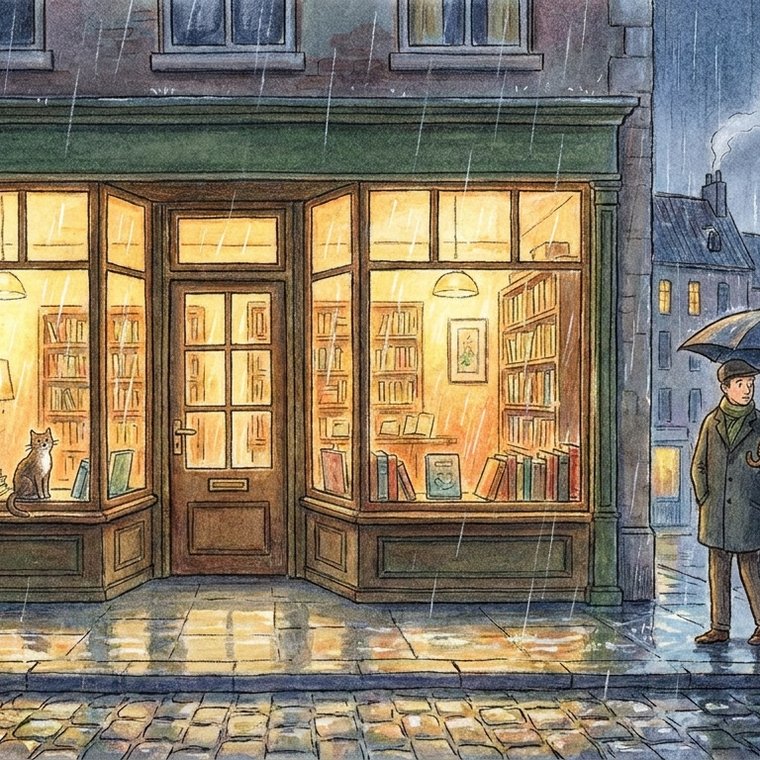
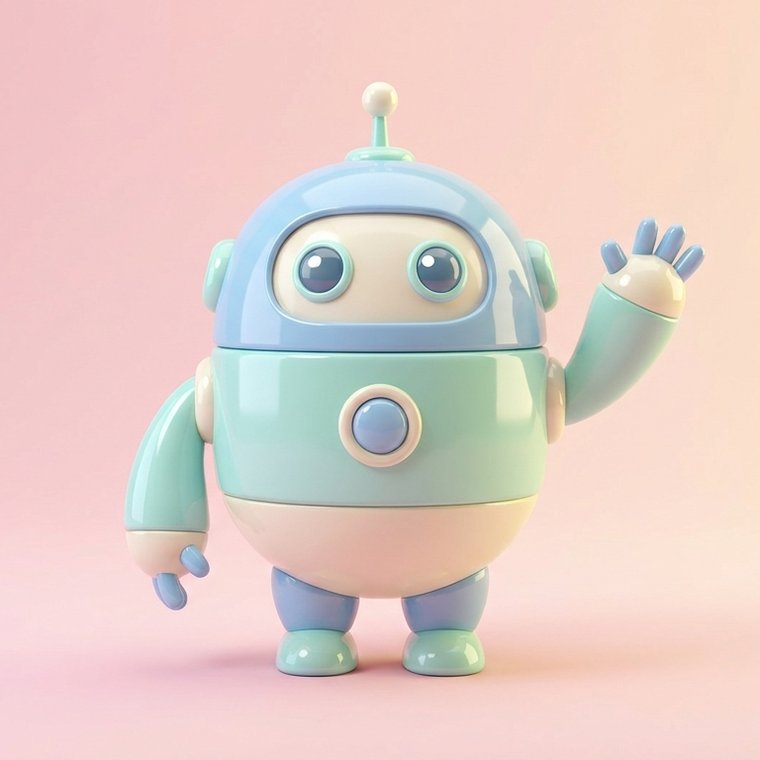
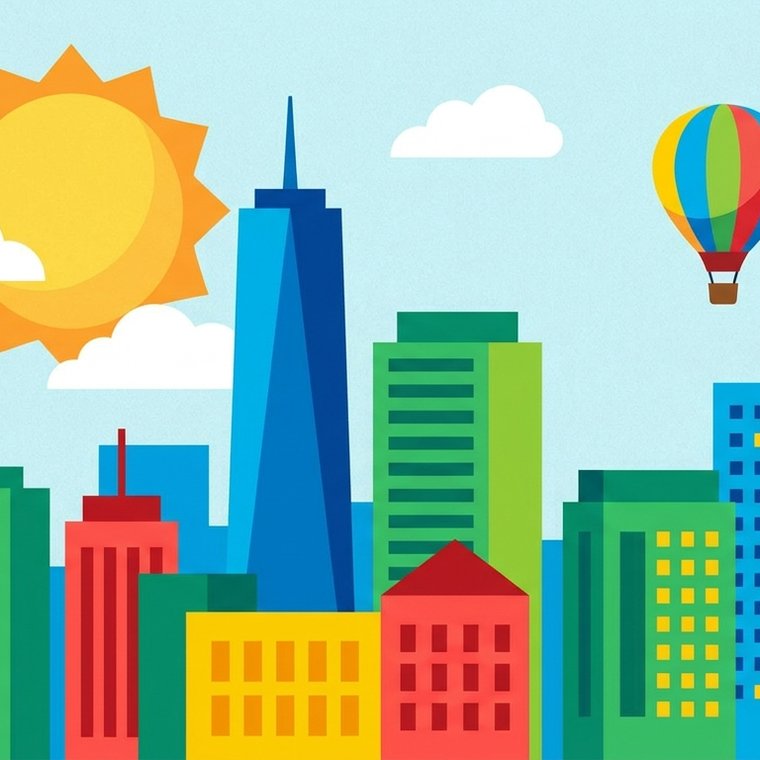
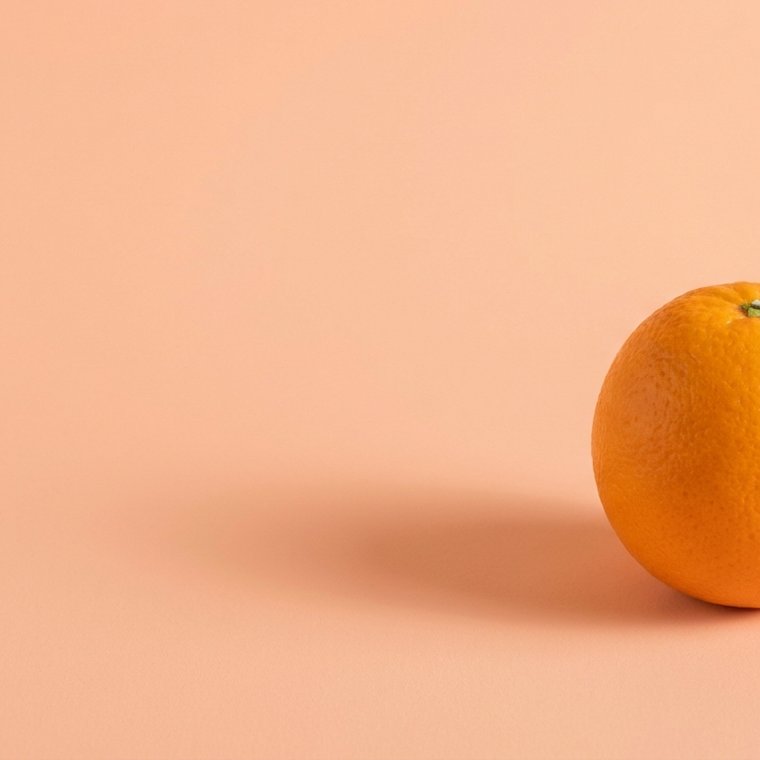
The same prompt box makes photos, art, 3D and more. Pick a style chip, then make it yours.
Example prompts to get started
Copy one of these working prompts, or open it straight in the generator above.
A white ceramic coffee mug on a marble counter, soft morning light, shallow depth of field, clean product photo
Use this promptA red fox sitting in fresh snow at golden hour, soft winter light, highly detailed fur, photographic
Use this promptMinimalist line-art logo of a mountain inside a circle, single weight, black on white, vector style
Use this promptCozy Scandinavian living room, warm afternoon light, light wood and linen, interior design photo
Use this promptCyberpunk city street at night, neon reflections on wet pavement, cinematic, moody, ultra detailed
Use this promptFlat-design illustration of a person working on a laptop, soft pastel palette, simple shapes, vector
Use this promptStudio portrait of a smiling woman, soft key light, neutral grey backdrop, 85mm, shallow depth of field
Use this promptIsometric 3D render of a tiny island with a lighthouse, soft shadows, pastel colors, clay material
Use this promptWatercolor painting of a lavender field at sunset, loose brush strokes, warm tones, painterly
Use this promptWhat the AI image generator does
The img.now AI image generator turns a short text prompt into a finished image in seconds. Describe a subject, a setting, and a style, and the model builds a brand new picture that matches your words. You are not searching a stock library, so every result is generated fresh and you can make exactly the image your project needs. If you are new to this, the guide to what AI image generation is explains the basics in plain language, and you can read how the image generation model works under the hood.
How to use the generator
Start with a clear prompt that names the subject, the setting, the style, and the lighting. Pick a style chip and an aspect ratio that match where the image will be used, then select Start generating. Review the result and adjust the prompt, or send the image straight to a finishing tool. For sharper output, follow the prompt writing guide and the prompt structure breakdown, and add a few exclusions with negative prompts.
Pick the right aspect ratio
Style sets the overall look while aspect ratio sets the shape for where the image will live. Match both to the job before you generate.
| Use case | Best ratio | Why |
|---|---|---|
| Social post | 1:1 | Balanced square crop |
| Story or phone wallpaper | 9:16 | Fills vertical screens |
| Blog hero or banner | 16:9 | Wide layout |
| Product photo | 4:5 | Works well in shops |
For a deeper look, read the guide to the best AI image aspect ratios.
Finish and export
Once you have a result you like, enlarge it with the image upscaler, clean it up with the image enhancer, or cut out the subject with the background remover. Before you publish anything commercial, check the notes on using AI images commercially.
Learn to prompt better
How to Write AI Image Prompts
A clear formula for writing AI image prompts that cover subject, setting, style, lighting, camera, and your output goal.
AI Image Prompt Structure
Break an AI image prompt into clear parts and see how order and detail change the picture you get back.
Best AI Image Aspect Ratios
A practical guide to picking the right aspect ratio by use case, from social posts and stories to wallpapers, blog heroes, and product shots.