
Background Removal Guide
How background removal works, how to get clean edges, export a transparent PNG, and replace backgrounds for product and profile images.
On this page
Background removal lifts your subject off its backdrop so you can place it anywhere. Done well, the edges stay clean and the cutout looks like it was always meant to be on its own.

Quick answer
Background removal separates the main subject from everything behind it. The tool detects the subject's outline, erases the rest, and lets you export a transparent PNG or drop in a new background. Clean edges and good lighting in the original give the best results, especially around hair and fine detail.
How background removal works
The tool looks at your image and decides which pixels belong to the subject and which belong to the background. Older methods relied on color contrast, so they struggled when the subject and backdrop were similar. AI models are smarter, since they recognize objects, people, and products by shape rather than color alone.
Once the subject is identified, the tool builds a mask, which is a precise outline of what to keep. Everything outside the mask becomes transparent. The quality of that mask is what separates a clean cutout from a rough one, and it depends a lot on the original image.
Getting clean edges
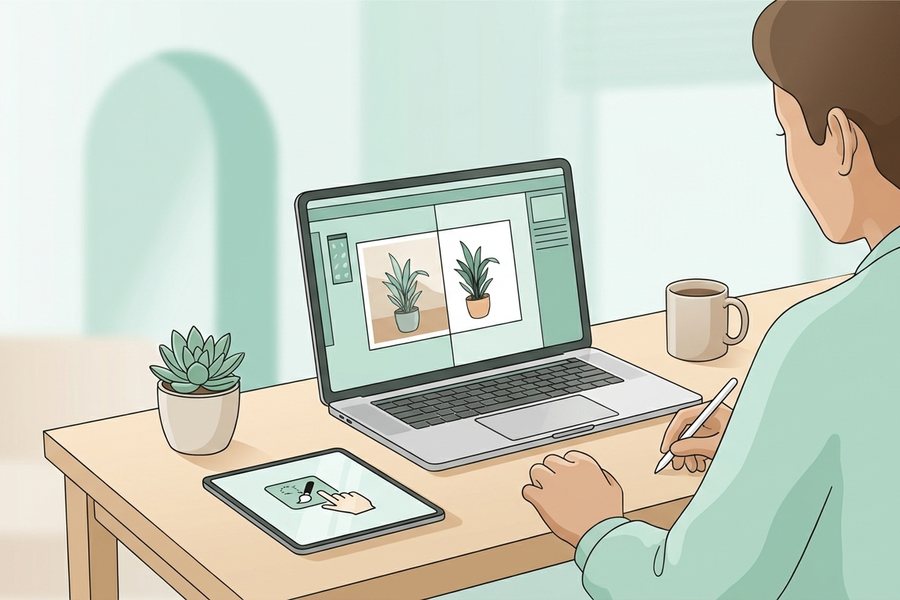
Edges make or break a cutout. Hard, simple outlines like a phone or a box are easy. Soft, complex edges like hair, fur, and glass are the real test, and that is where a good model earns its keep.
| Edge type | How clean | Tip |
|---|---|---|
| Solid object | Very clean | Almost any tool handles it |
| Hair and fur | Tricky | Use good lighting and contrast |
| Glass or smoke | Hard | Expect some manual touch-up |
| Motion blur | Rough | Reshoot sharp if you can |
To help the tool, start with an image where the subject stands out from the background. Even lighting and a bit of contrast between subject and backdrop give the cleanest mask. If the original is grainy or soft, run our image enhancement guide steps first so the edges are sharper before you cut.
Transparent PNG export
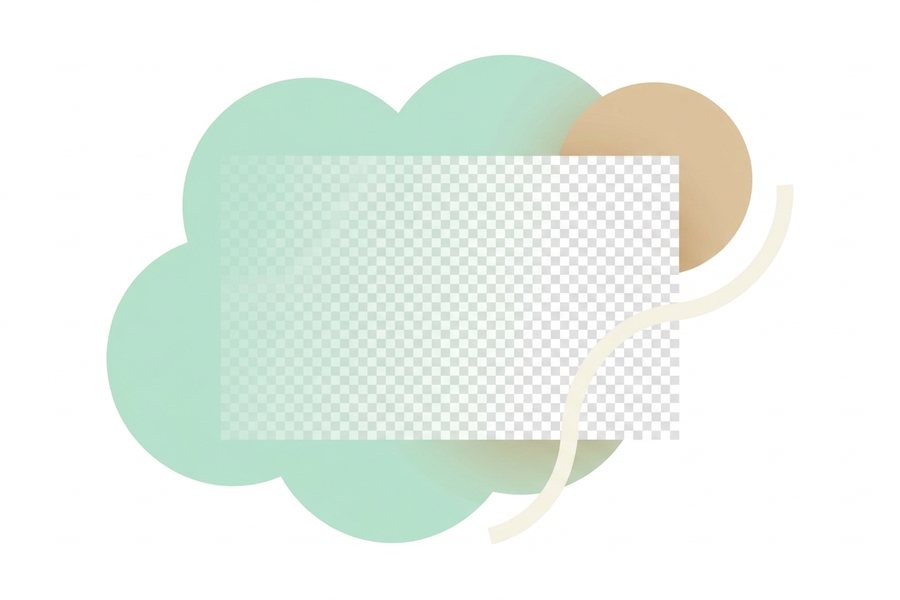
When you want the subject to sit on any color or scene, export a PNG with transparency. PNG keeps the see-through area intact, while JPG cannot, so it would fill the transparent space with white or another solid color.
Save the cutout as a PNG, then place it over a website, a slide, or a new photo and the background shows through cleanly. If file size matters and you do not need transparency, other formats may be smaller. Our comparison of png vs jpg vs webp explains which to pick for each job, including when WebP can keep transparency at a smaller size.
Replacing backgrounds
Removing is only half the story. Once the subject is free, you can drop in a new backdrop, and this is where product and profile images really benefit. A product on a plain white or soft gradient looks polished and consistent across a catalog.
For people, a clean or softly blurred background keeps the focus on the face. Match the lighting of the new background to the subject, or the cutout looks pasted on. For shop and catalog work, our notes on AI product photos show how to build consistent, on-brand scenes around a clean cutout.
Checklist
- Start with a sharp, well-lit original
- Make sure the subject contrasts with the backdrop
- Check hair and fine edges closely after removal
- Export as transparent PNG when you need see-through
- Match new background lighting to the subject
- Keep a copy of the original before editing
- Use a plain backdrop for product consistency
Example
Here is a recipe for turning a messy product photo into a clean catalog image with a fresh background.
Image: product on a cluttered desk
Step 1: Remove background to isolate the product
Step 2: Inspect edges, especially corners and any shine
Step 3: Export the cutout as a transparent PNG
Step 4: Place it on a soft white-to-gray gradient
Step 5: Add a subtle shadow so it sits in the scene
Before: a product lost in a busy, distracting room. After: a crisp cutout on a clean, consistent backdrop. The background remover tool handles the cutout in one pass, leaving you free to drop in any backdrop. To soften a background instead of cutting it out, the blur tool keeps your subject sharp while blurring everything behind it.
FAQ
Why are the edges of my cutout rough?
Rough edges usually come from low contrast, blur, or motion in the original. A sharper, better-lit source gives the tool a cleaner outline to follow.
Can I keep a transparent background?
Yes. Export as PNG, which supports transparency. JPG cannot hold a see-through area, so it would replace it with a solid color.
Does background removal work on hair?
Modern AI handles hair far better than old color-based tools, though very fine strands may still need a light touch-up. Good lighting and contrast help a lot.
Can I remove the background from any image?
Most images with a clear subject work well. Glass, smoke, and heavy motion blur are the hardest, since the boundary between subject and background is not sharp.
This guide is general information to help you create better images. For rights and commercial questions, read the copyright and image rights notes.